Sometimes you want the article behind a picture. Other times you just want to inspect the picture on its own. Google Images links to the source page; Classic View adds a shortcut to the available image file.
I'm the developer of Classic View. Its View image button looks for an original image URL in the Google results page. When that address is unavailable, it opens the thumbnail instead. That fallback matters: a direct link is not a guarantee of a full-resolution file.
How to add the View image button in Chrome
- Install Classic View for Google Images from the Chrome Web Store. Review the requested access before confirming.
- Open a Google Images search. Refresh the results page if it was open before installation.
- Open Classic View from Chrome's extensions menu. Turn on the main switch and View image button.
- Move the pointer over a result. Click View image on the thumbnail to open the image in another tab.
The shortcut is separate from Hover zoom. You can turn off hover previews and keep the button. Classic View also applies its row layout while enabled; the display settings guide explains how to adjust it.
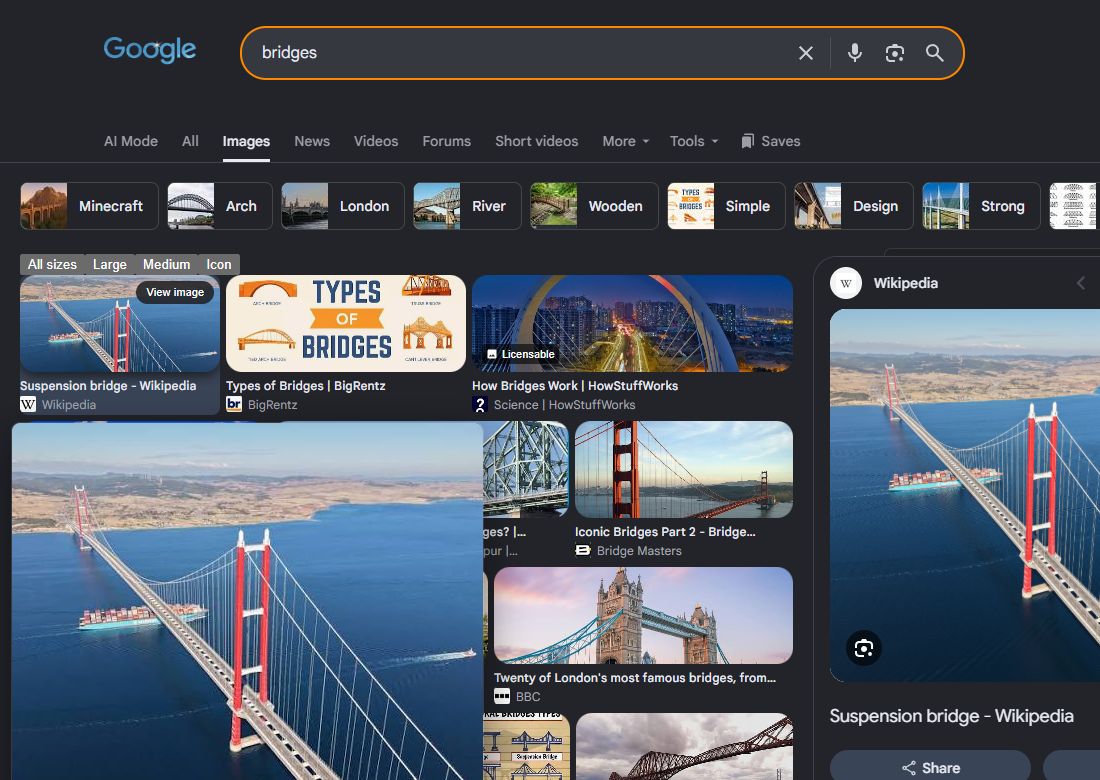
Tested October 8, 2026, on a search for bridges in Chrome with Classic View enabled. The first Wikipedia result's View image button opened a JPG hosted on Wikimedia in a new tab. Other results can behave differently.
How to reach an image without an extension
Click a Google Images thumbnail to open its preview, then use Visit or the source link to open the page containing the image. This is also the place to read the caption, check the creator, or look for a download offered by the publisher. Google's image search help describes the basic search flow.
On the source page, Chrome may offer Open image in new tab when you right-click an image. That opens the image address used by that page. Some sites use galleries or overlays, so the option may not appear where you first click. The file may also be smaller than the publisher's original.
Why does View image open a small image?
Google's thumbnail and the publisher's original are different files. Classic View uses the original address when it can find it in the results data. If it cannot, the thumbnail is the available fallback. Making that thumbnail larger on screen will not recover missing detail.
Try visiting the source page and looking for a larger version there. A size filter can help you find other candidates, but it cannot make an unavailable original accessible.
What to check if the button is missing
First, point at a thumbnail: the button appears on hover. Then check that both the main extension switch and View image button are on. Refresh Google Images after changing extension access or updating the extension.
If nothing changes, check Classic View's access to the Google domain you are using. Google's extension management instructions explain site access. If another extension changes the same page, temporarily turn it off to check for a conflict.
If the button opens a broken or blocked URL, visit the source page. The publisher may have removed the file or restricted direct access. Classic View cannot bypass those restrictions.
Keep the source with the image
A file opened in its own tab can lose the context that came with it. Keep the source page when you need the caption, attribution, or reuse terms. Opening a file through the extension does not give you permission to reuse it.
If the shortcut still fails, report the problem on GitHub with your browser and extension versions, a sample search, and what happened when you clicked. Avoid including private search results in screenshots.