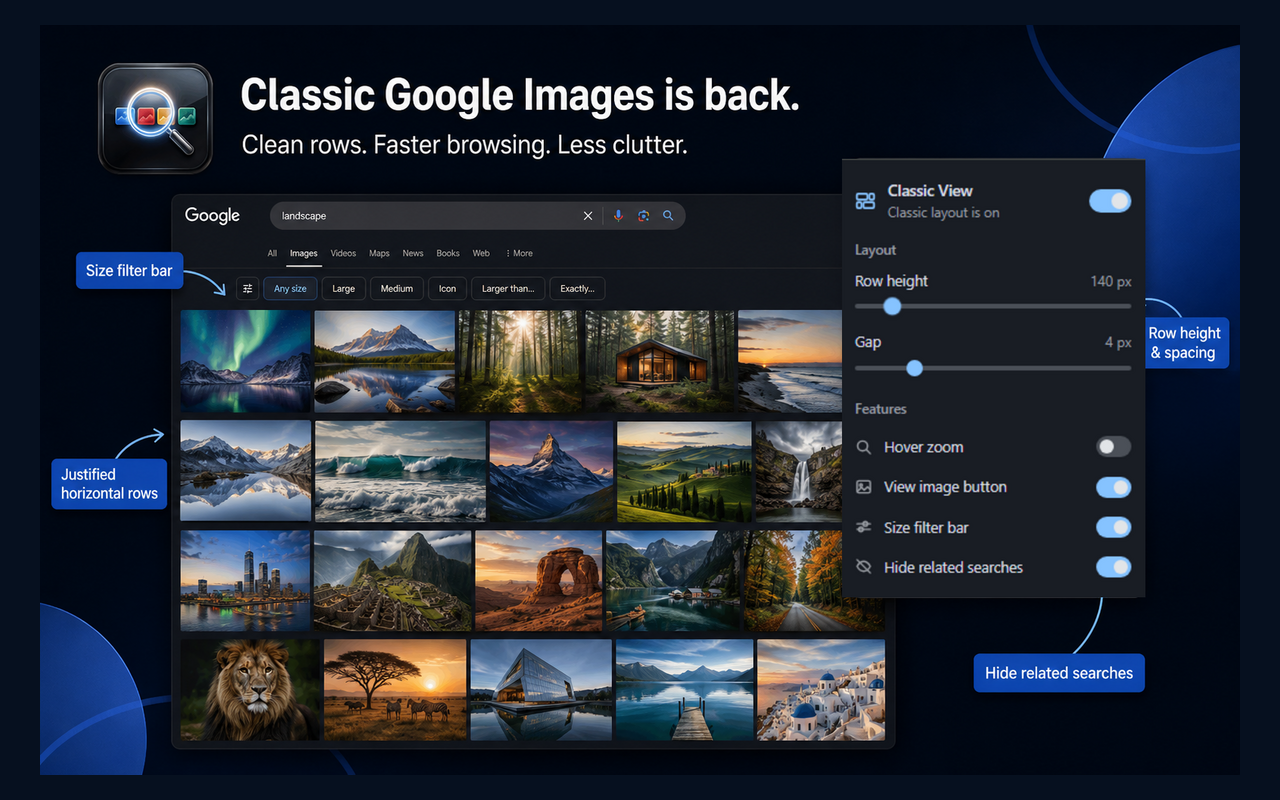
By "normal," I mean the old Google Images layout, with thumbnails arranged in horizontal rows. Classic View restores that style of browsing; it doesn't recreate every part of a past Google interface.
I'm the developer of Classic View. I built it to bring back horizontal rows without changing how you search for images.
Restore the old Google Images layout in Chrome
- Open the Classic View listing in the Chrome Web Store.
- Click Add to Chrome, review the requested access, and confirm with Add extension, as described in Google's installation guide.
- Open Google Images and run a search. If you already had the results page open, refresh it.
- Open Classic View from Chrome's extensions menu. Check that the main switch is on.
- Adjust Row height and Gap until the results fit your screen.
Is there a Google setting for the old layout?
Google's documented Search settings don't list a switch for restoring the old Google Images grid. The Appearance setting controls the light or dark theme.
You may also find instructions telling you to open a "Look and feel" menu and select an image layout. Those instructions belong to Google Programmable Search Engine, which lets website owners configure a search box on their own site. They won't change the results page you see on Google Images.
How to change Google Images display settings
Open Classic View from Chrome's extensions menu while you're on a Google Images results page. The popup lets you adjust the layout without leaving your search.
Start with the default Row height of 180 pixels. Lower it to fit more results on screen, or raise it to make thumbnails easier to inspect. Images keep their proportions as the row height changes. Use Gap to adjust the space between them.
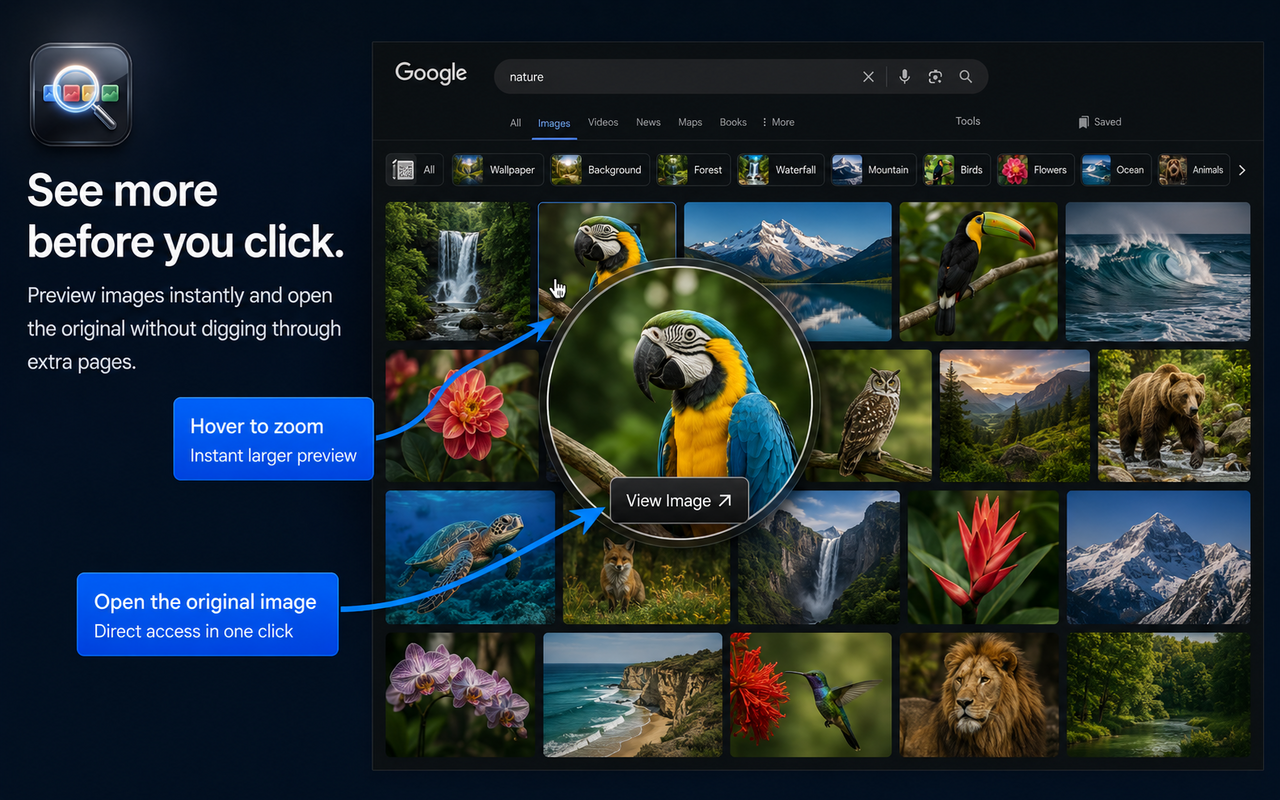
The horizontal rows are the main change, but you can also turn on a larger preview when you hover over a thumbnail. If those previews get in your way, switch Hover zoom off in the popup.
The View image button opens an image in a separate tab. The extension uses the original image address when it can find one in the page data; otherwise, it falls back to a thumbnail.
You can also enable the size filter bar for Large, Medium, and Icon results, or hide related-search blocks. Each control has its own switch, so you can keep the rows and turn off the extras. The Classic View feature overview shows the available controls.
What to check if the layout still looks wrong
Refresh the results page after installing the extension, then check its main switch. If nothing changes, open Chrome's extension details and check that Classic View can run on the Google domain you're using. Google's extension management guide explains site access.
If another extension also changes the Google Images layout, temporarily turn that extension off and refresh to check for a conflict.
Scroll beyond the first screen, too. Google loads more results as you browse, so a problem may only appear further down the page. If the rows break after scrolling, use Report issue in the Classic View popup and describe where it happens. You can also report a layout problem on GitHub.
Does this work on iPhone or Android?
This method is for Chrome on a computer. Chrome Web Store extensions don't run in mobile Chrome, and requesting the desktop version of a page doesn't change that. Google confirms this in its extension compatibility guidance.
How to return to Google's default view
Open the Classic View popup and turn off the main switch. That removes the extension's layout changes. You can turn it back on whenever you want the horizontal rows again.
Privacy
Classic View does not collect search queries or browsing history. Only your layout preferences sync through Chrome’s built-in storage. Details are in the privacy policy.